Reports and notifications in the Cristie Virtual Appliance (VA)
Configure a report to show the config dates for systems with Cristie installed, systems licensed and unlicensed and expiring license status.
Please follow the interactive guide here or see the steps below: Out of Date Config Reporting | Cristie Appliance
Step 1
Configure the report in Settings / Report Settings

Step 2
Create a new report

Step 3
Select Backup, Estate and Licensing report type, ensuring Include ‘DR Config Dates’, Include ‘Estate License report’ & ‘Alert Expiring License’ is selected.

Step 4
Configure your report schedule

Step 5
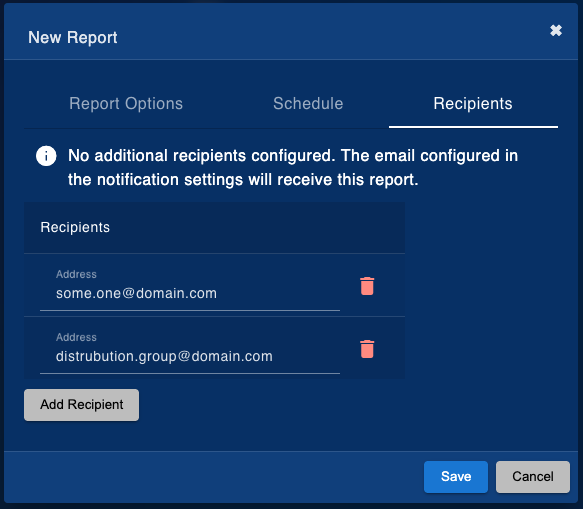
Include any optional recipients. By default the report will include the user (or group configured in notification settings). For more information on notification settings click here
Once configured, you can run, modify or delete this report in report settings

Example report

Configure Notifications
Open Settings / Notifications Settings
Enable Email Notifications

Enter the details of the smtp server. Default recipients can also be configured here.
Press Send Test Email to confirm then Save.
